Your influence database has a Parent/Subsidiary option where you can link multiple client records together under a single "Parent" organisation. This article explains about the feature.
Contents (click to jump to item)
TABLE OF CONTENTS
- SETUP/PARAMETERS
- OVERVIEW
- HOW TO LINK A CLIENT TO A PARENT
- Reporting Parent/Subsidiary Structure
- AWR Reporting (by Parent)
SETUP/PARAMETERS
| NOTE: The option is not usually turned on by default, so you may not see the [Parent] tab in your system. If you want this, the feature can be turned on with parameter REC, Flag(49) The feature is activated using parameter REC, Flag(49) AND RecB, Priority (1). |
OVERVIEW
In Influence it is possible to activate the Parent/Subsidiary option.
This allows you to record against a company the ID of it 'Parent' organization.
When viewing a company you can select the [Parent] tab at the left to see/select the parent company.
If viewing the parent company, then selecting the [Subsidiaries] tab will display all the companies for which they are the parent.
Example of the Parent screen.
Here you can see which organisation is the parent for this client.
Example of the Subsidiaries screen
Here you can see which clients are linked to this parent organisation.
HOW TO LINK A CLIENT TO A PARENT
To link a client to a parent, follow the simple steps below
- Go to the client and select the [Parent] tab
- Click the [...] button and choose the organisation that will be their Parent.
- Enter the name and click OK to Search/choose the Parent Organisation
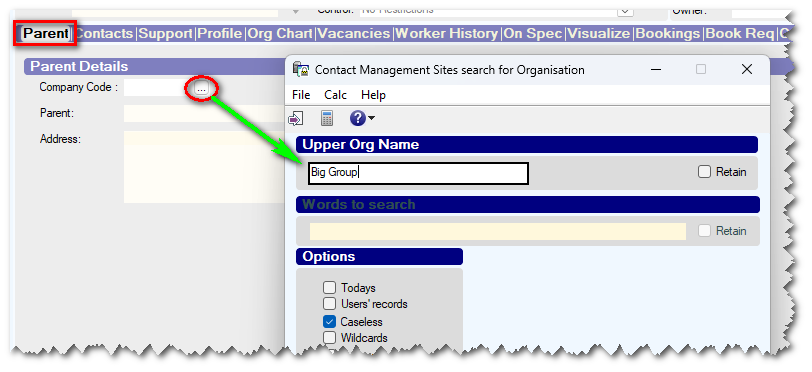
Thats it ! Nice and simple.
Reporting Parent/Subsidiary Structure
From version 1.00.22.108 or later, it is possible to run a report to list Parents/Subsidiaries setup in the system.
The report can be found in Maintenance > Reporting Tools > Parent/subs/branches
See below for example
The report can be exported to MS Excel using the icon in the toolbar.
AWR Reporting (by Parent)
The system calculates AWR weeks for workers, and these can be seen in the AWR report.
AWR weeks are normally calculated based on the number of weeks that a worker has worked for a particular Client
Optionally AWR can be calculated by PARENT.
So if a worker worked 2 weeks at Client A, and 3 weeks at Client B, but they were both linked to the same Parent, then the worker would show an AWR count of 5 Weeks (based on the Parent)
The ability to calculate AWR by parent is activated with parameter PAYROLL, FLAG(38) - which should be set to "P"


Was this article helpful?
That’s Great!
Thank you for your feedback
Sorry! We couldn't be helpful
Thank you for your feedback
Feedback sent
We appreciate your effort and will try to fix the article