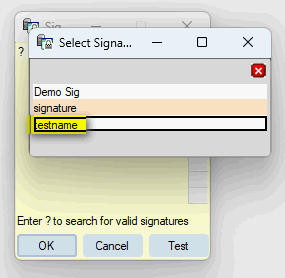
In certain cases, the system will locate the signature via the sig-picker tool, and once you select it, you may see the following message: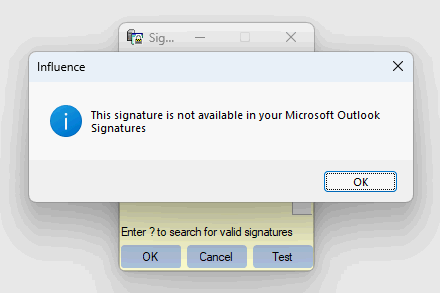
To resolve, follow the below:
1a) Navigate to the signatures folder by following:
Outlook >> File >>> Options >> Mail >> hold [Ctrl] and Left-click on the [Signatures...] button to open the folder.
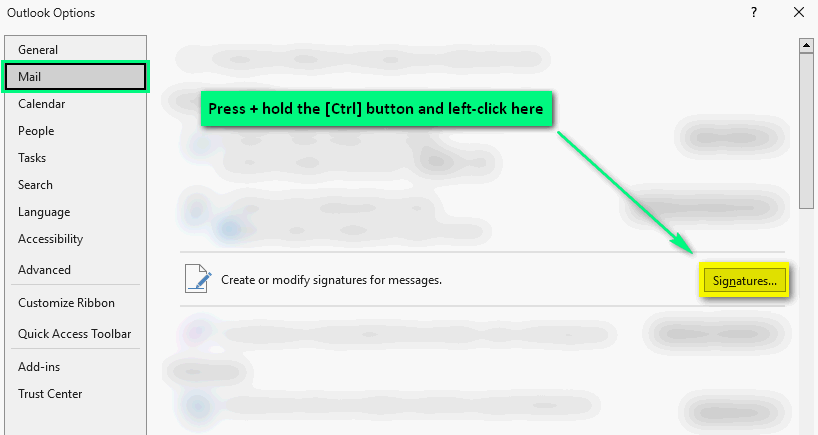
1b) File path will look like: C:\Users\TESTNAME\AppData\Roaming\Microsoft\Signatures
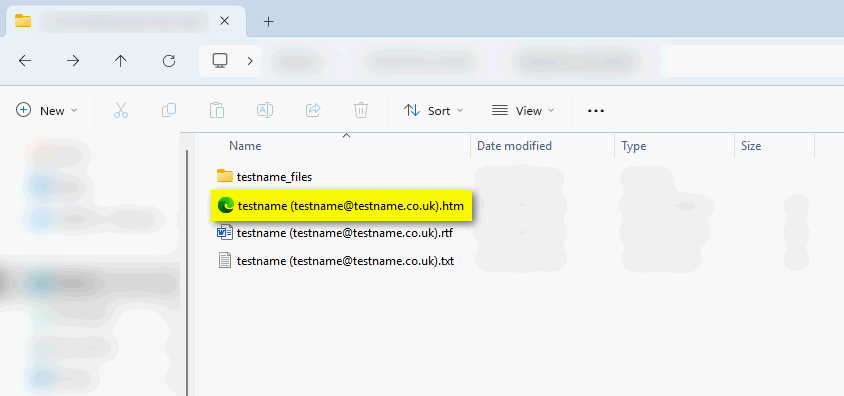
2) Copy the relevant signature's .htm file into another folder – you can create a temp folder within Documents and paste the .htm file there.
You will notice that the files folder will follow.
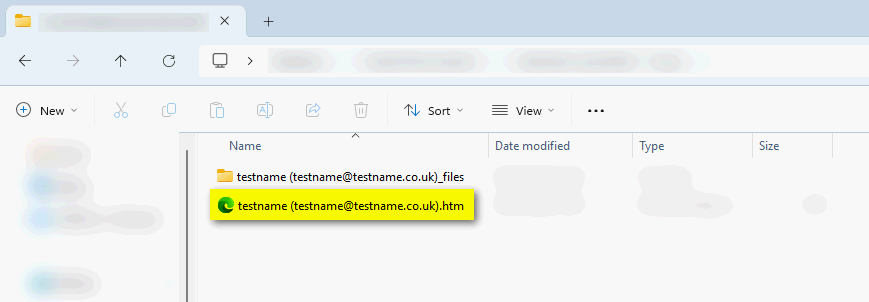
3) In the example below you can see we have renamed the .htm file by removing the brackets and email address
testname (testname@testname.co.uk).htm à testname.htm
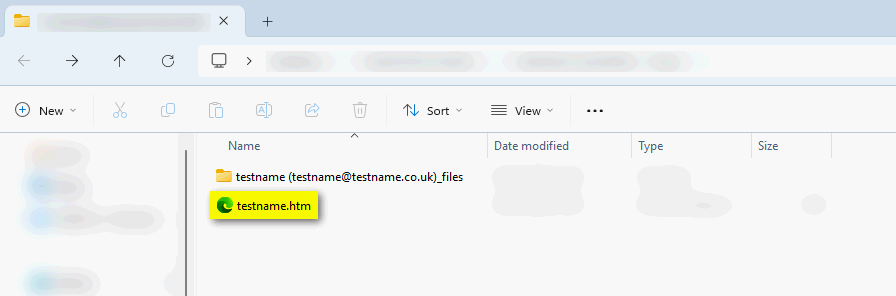
4) Copy the testname.htm file and paste into the signatures folder.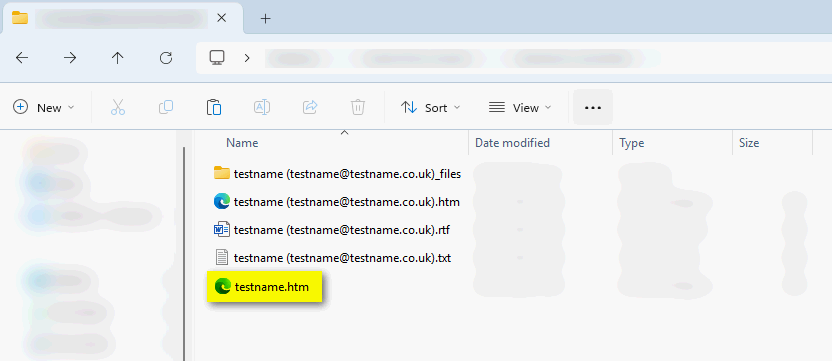
5) Navigate to Influence and select the signature (without email address in brackets) via the sig-picker.
Was this article helpful?
That’s Great!
Thank you for your feedback
Sorry! We couldn't be helpful
Thank you for your feedback
Feedback sent
We appreciate your effort and will try to fix the article